
S-FSD-L210-0175.24
Insulated fire damper with fusible link and torsion spring, combinable
Revit families, IFC files and 2D drawings for the Starduct product lines, carrying the same codes as the catalogue, the Quick Selectors and orders. Every family uses the shared STD_ parameter set and states its data source.
108 families · 8 product lines · data release 2026.10.24-A
Filter by product line or format, or search by code. Each code only shows buttons for files that are released. Direct download, no sign-in. To carry the performance of the selected size into your model, use the Quick selector.
Pick a product group to see its families — or type a code to search the whole library.
108 families
RFA files are saved in Revit 2026 — older Revit versions cannot open them; use the IFC file instead (link it into Revit).
No families match the filter.
Install STARDUCT BIM Tools once for every product line. The add-in receives the units you selected in the Quick Selectors, downloads the family, picks the type by order code and places it in your model.
The legacy add-in can only place VAV S-VAV-S. For other lines use STARDUCT BIM Tools on Revit 2025 / 2026, or download the RFA / IFC from the family catalogue.
Select the size and operating point in a Quick Selector, add it to the project list and press «Send to Revit» next to the Submittal button. Without the add-in you can still download the .json parameter file of each unit.
Each unit placed in Revit carries its tag (Mark), full order code, size, report number and the performance at your selected operating point (STD_Selection / STD_Perf parameters).
Load them once into your project so schedules read every Starduct family. GUIDs are fixed — updating a family never drops a column.
From installing the add-in to placing equipment in Revit with operating-point performance — recorded in real Revit.
Install the add-in, open Starduct Selector inside Revit, select equipment and place it in the model with operating-point performance. Fire dampers split into modules when resized, grilles and louvers host to ceilings and walls; real Revit footage.
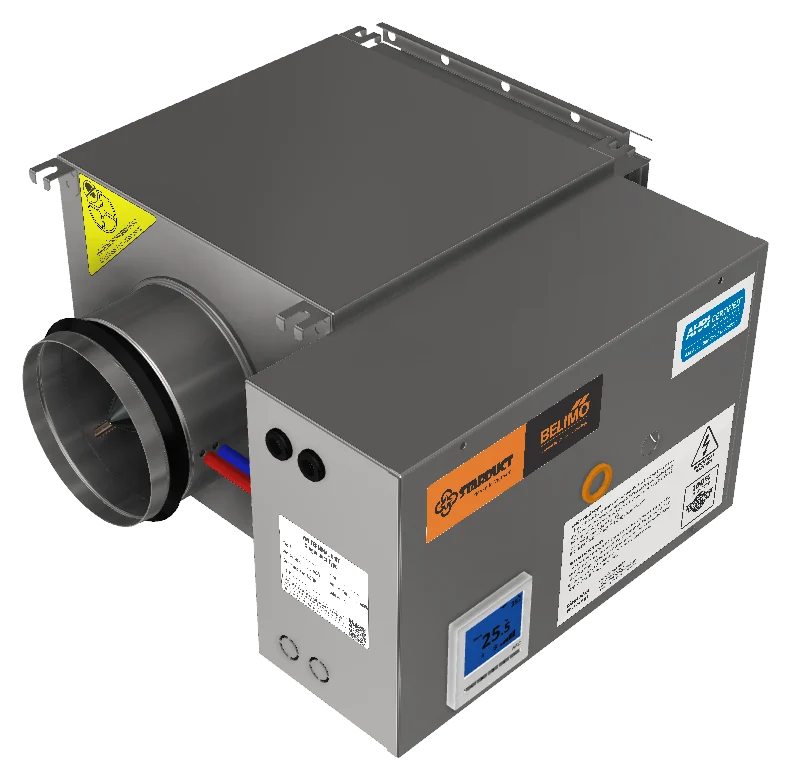
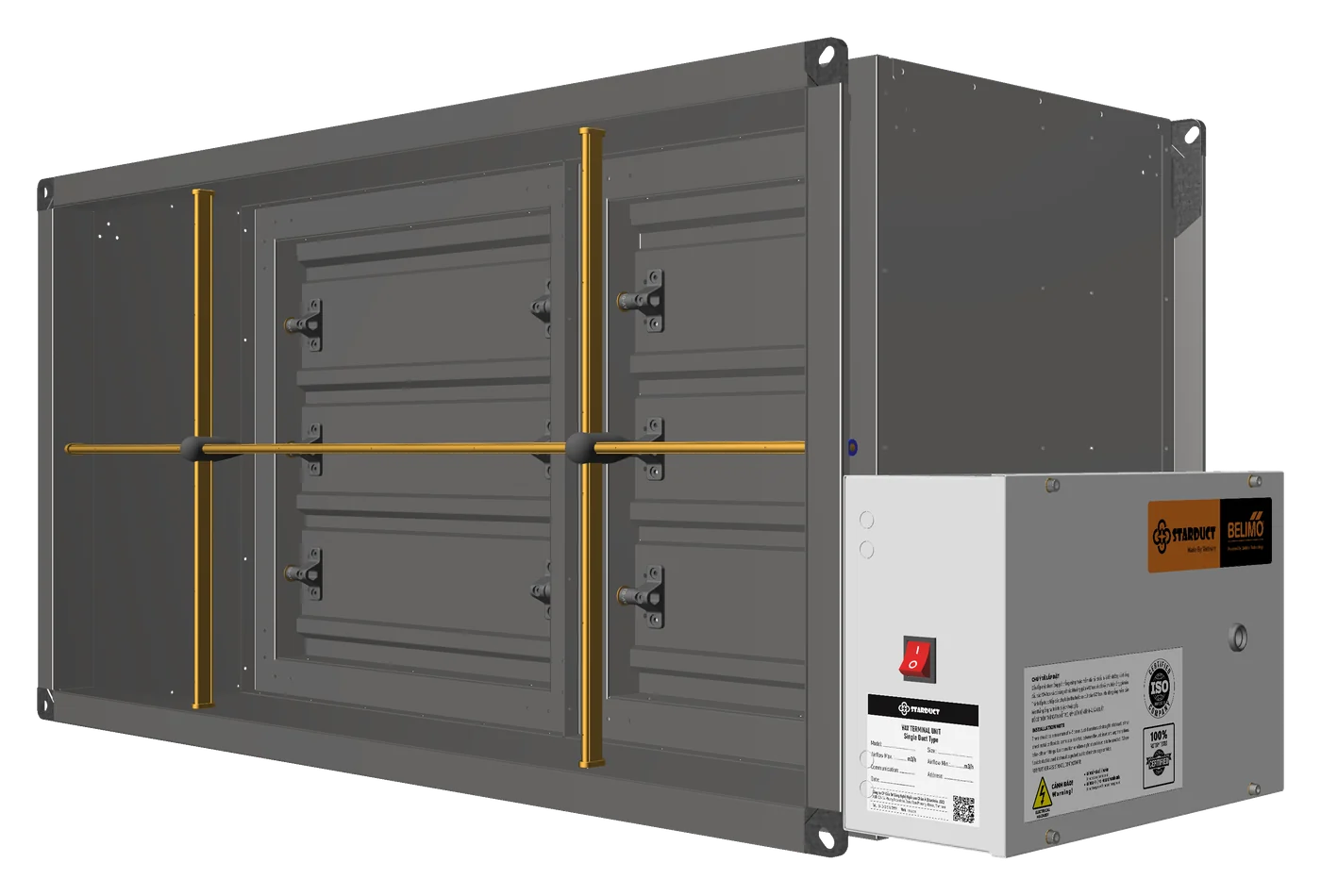
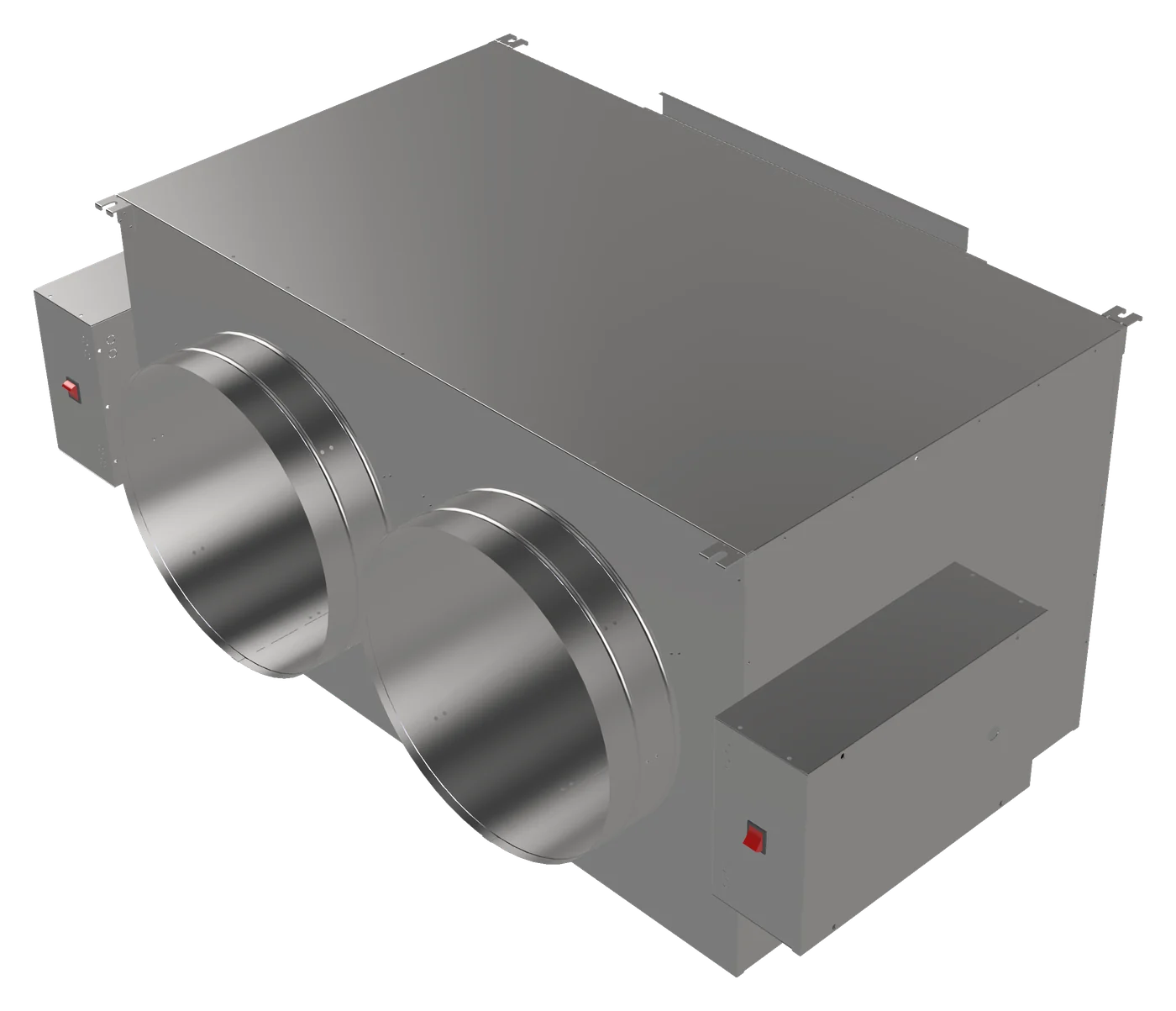
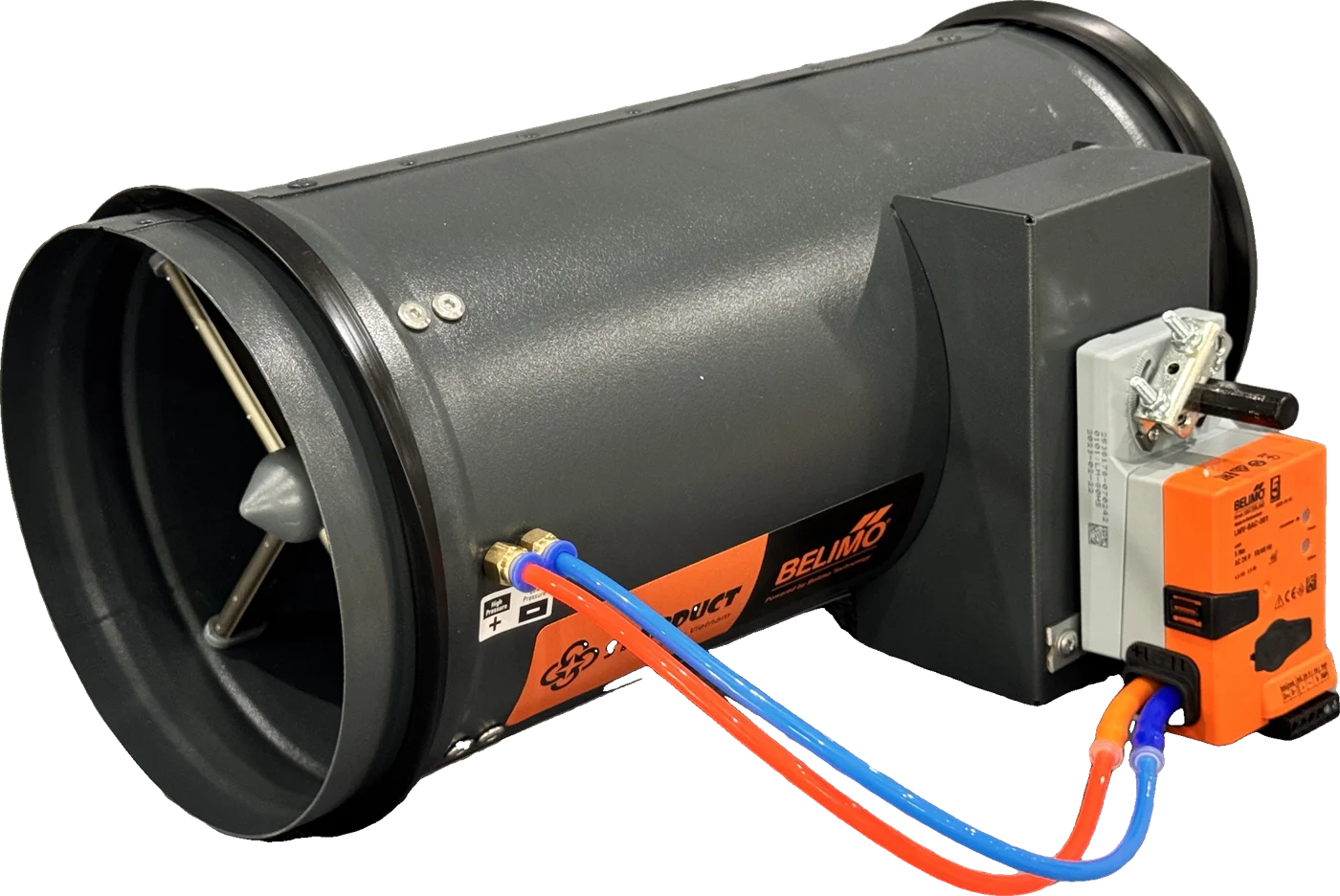
3D models of the units that have them — rotate, zoom and switch sizes before downloading the family.

Messages are processed by AI to answer you; please do not enter sensitive information.